
Download Disk Drill – Free Data Recovery, Secure Backup & Disk Management Tool
Overview: Why Disk Drill Stands Out in the Data‑Recovery Landscape
When a critical file disappears—whether it’s a family photo, an important contract, or a treasured video—time becomes a precious commodity. Disk Drill, developed by CleverFiles, is a free file recovery application that delivers a balanced mix of powerful recovery engines, preventive utilities, and an intuitive user interface. Unlike many “free” tools that limit you to a few megabytes, Disk Drill offers a generous 500 MB of recoverable data on Windows and a functional (though slightly restricted) macOS version that still lets you preview lost files before deciding to upgrade.
The software is built on a multi‑layered scanning architecture: a quick scan for recently deleted items, a deep scan that parses raw sectors, and specialized searches for lost partitions or corrupted file systems. Beyond recovery, Disk Drill includes a suite of extra tools—Cleanup, Duplicate Finder, Recovery Vault, and a S.M.A.R.T. health monitor—that help you protect data before it’s lost. The program supports a wide range of storage media, from internal SSDs and HDDs to external USB drives, memory cards, and even iOS backups.
Its cross‑platform availability (Windows 10/11, macOS 10.13+, Android, and iOS) ensures you can safeguard data across desktops, laptops, and mobile devices. While the free tier is sufficient for casual users, professionals can unlock unlimited recovery, priority support, and advanced scanning options with the paid Disk Drill Pro subscription. In short, Disk Drill provides a secure, regularly updated solution that balances ease‑of‑use with the depth required for serious data‑loss scenarios.
Key Features That Make Disk Drill a Must‑Have Utility
- Multi‑Method Scanning: Quick Scan, Deep Scan, Lost Partition Scan, and Universal Partition Search cover every data‑loss scenario.
- Cross‑Platform Support: Native applications for Windows, macOS, Android, and iOS devices.
- 500 MB Free Recovery (Windows): Recover a substantial amount of data without paying a cent.
- Recovery Vault & Guaranteed Recovery: Real‑time protection that stores hidden copies of deleted files.
- Disk Health Monitoring (S.M.A.R.T.): Early warnings for failing drives to prevent future loss.
- Cleanup & Duplicate Finder: Free up space by identifying large, redundant files.
- Bootable Media Creator: Turn a USB stick or SD card into a bootable rescue drive.
- Secure Shredder: Permanently erase sensitive files beyond recovery.
- Backup Utility: Schedule automatic backups of entire partitions or specific folders.
- Intuitive UI with Dark Mode: Easy navigation and visual previews of recoverable items.
Installation & Usage: Step‑by‑Step Guide for Windows and macOS
Downloading the Installer
Start by visiting the official CleverFiles website. Choose the appropriate version—Windows or macOS—by clicking the “Download Free” button. The Windows installer comes as a .exe file, while macOS provides a .dmg package. For Android and iOS, locate Disk Drill in the Google Play Store or Apple App Store respectively.
Running the Installer
On Windows, double‑click the .exe file, accept the license agreement, and follow the wizard prompts. The installer recommends default locations, but you can customize the install folder if needed. macOS users should open the .dmg, drag the Disk Drill icon to the Applications folder, and then launch the app. A security prompt may appear on macOS; click “Open” to allow the app to run.
First‑Launch Configuration
Upon first launch, Disk Drill asks whether you want to enable the Recovery Vault and Guaranteed Recovery features. Enabling these adds a background service that monitors file deletions and creates hidden copies—ideal for users who want proactive protection. If you prefer a leaner setup, you can skip these options and enable them later from the “Data Protection” tab.
Recovering Lost Files
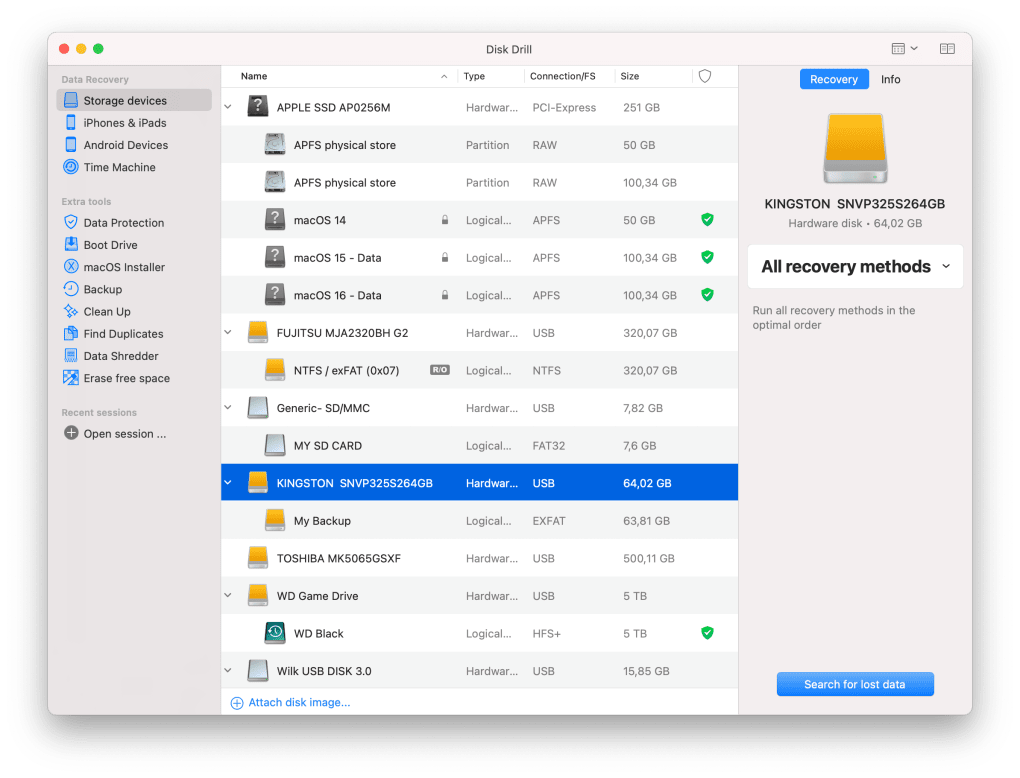
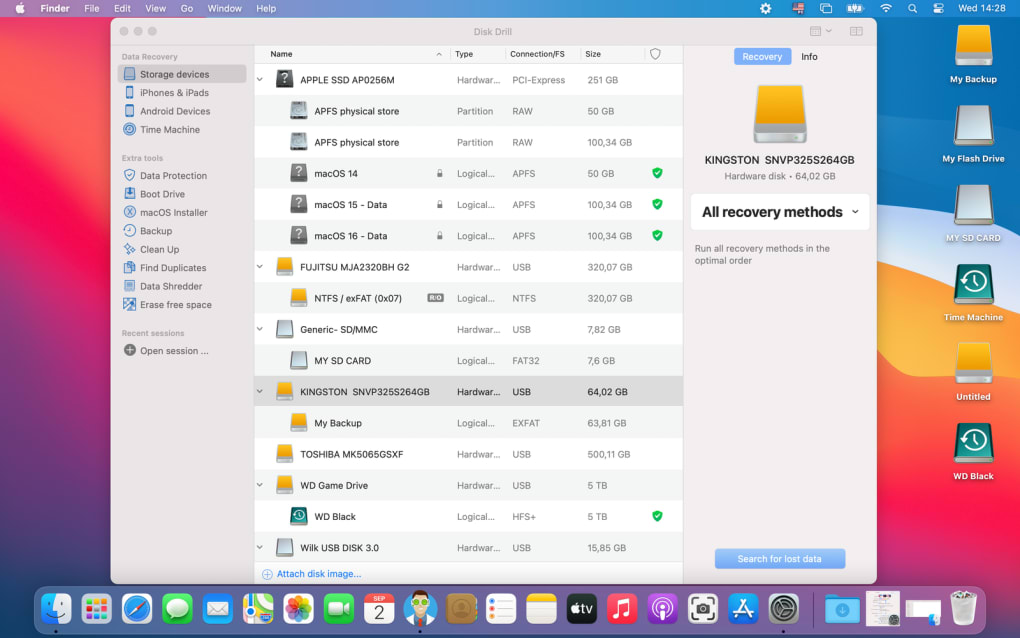
1. Select the drive or external device you wish to scan from the left‑hand pane.
2. Choose a scan type—Quick Scan for recently deleted items or Deep Scan for more thorough recovery.
3.
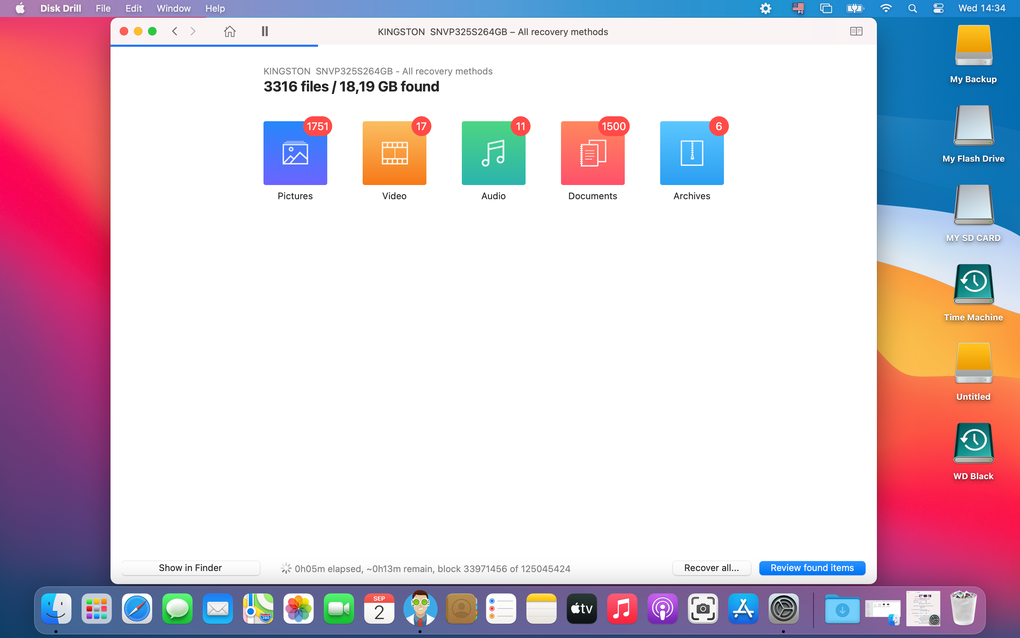
Click “Search” and let Disk Drill analyze the sectors. Progress is displayed with an estimated time remaining.
4. Once the scan finishes, results are categorized (Photos, Videos, Documents, etc.).
Click any file to preview it.
5. Mark the files you want to restore, then click “Recover.” Choose a safe destination (never recover to the same drive you’re scanning) and confirm.
Using Extra Tools
The Cleanup utility scans for large files and presents a visual map of storage usage. Duplicate Finder lets you set custom folders and filter results by “Newest” or “Oldest.” Both tools operate with a few clicks and include undo options in case of accidental deletions. The Bootable Media Creator walks you through selecting a USB drive, formatting it, and installing a rescue environment that can be used when the operating system fails to boot.
Compatibility, Pros & Cons: What to Expect on Different Platforms
Disk Drill runs on Windows 10/11 (64‑bit), macOS 10.13 or later, Android 8.0+, and iOS 12+. The Windows free tier offers 500 MB of recoverable data, while the macOS free version is unrestricted for previews but requires a Pro upgrade for unlimited recovery. External storage devices—USB flash drives, SD cards, and external hard drives—are fully supported, as are iOS backups accessed via iTunes or Finder.
Pros
- Generous 500 MB free recovery limit on Windows.
- All‑in‑one suite: recovery, backup, disk health, and duplicate removal.
- Cross‑platform availability, including mobile devices.
- Intuitive UI with real‑time previews of recoverable files.
- Regular updates and active developer support.
Cons
- Mac free version limits some advanced scan methods to Pro.
- Unlimited recovery requires a paid subscription.
- Recovery speed can be slower on very large drives during deep scans.
- Advanced features (e.g., Recovery Vault) consume additional disk space.
- Some users report occasional false‑positive detections in duplicate finder.
Frequently Asked Questions
Is Disk Drill really free for both Windows and macOS?
Yes, Disk Drill offers a free tier on both platforms. Windows users receive 500 MB of recoverable data, while macOS users can scan and preview files without cost. However, unlimited recovery and some advanced scanning methods require a Pro upgrade on macOS.Can Disk Drill recover data from a formatted SSD?
Absolutely. Disk Drill’s Deep Scan and Universal Partition Search can locate remnants of files even after a full format. Success depends on how much the SSD has been overwritten since the format.What is the Recovery Vault and how does it protect my files?
Recovery Vault creates hidden copies of every file you delete, storing them in a secure vault on the same drive. If you accidentally delete a file, you can restore it instantly from the vault without running a scan. The feature uses additional disk space but offers instant recovery.Does Disk Drill support iPhone and iPad data recovery?
Yes. Disk Drill can read iOS backups created via iTunes or Finder and recover photos, messages, and other app data. The iOS version also allows direct connection to an iPhone or iPad for on‑device scanning, provided the device is not locked with a passcode.How often are software updates released?
CleverFiles releases updates roughly every 4‑6 weeks, delivering new features, performance improvements, and bug fixes. Users receive automatic notifications within the app, and the update process is a single click.Conclusion: Is Disk Drill the Right Choice for You?
Disk Drill delivers a comprehensive data‑recovery experience that goes beyond simple file restoration. Its free tier provides enough capability for most home users, while the Pro version unlocks unlimited recovery, advanced scans, and priority support—making it suitable for small businesses and power users alike. The added preventive tools, such as Recovery Vault, S.M.A.R.T. monitoring, and Duplicate Finder, turn Disk Drill into a proactive data‑management suite rather than a one‑off rescue utility. If you value a secure, regularly updated solution that works across Windows, macOS, Android, and iOS, Disk Drill is a solid investment. Download the free version today, test its recovery capabilities, and decide whether the premium features merit the upgrade for your workflow.
Pros: Easy UI, strong scanning options, useful extra tools.
Cons: Mac advanced features locked behind Pro, recovery speed on huge drives.







